🔗 Getting Started with Health Connect
Last updated About 1 year ago
If you’re on Android, Health Connect is what links your SweatScore app to your step and workout data. Think of it like the middle friend who keeps everyone in the group chat connected.
Here’s how to set it up step by step.
📲 Step 1. Access Health Connect
If you’re on Android 14 or higher:
Open your phone’s Settings.
Tap Security and privacy.
Tap Privacy controls.
Tap Health Connect.
To make sure your data flows properly into SweatScore:
✅ Give Health Connect permission to read data from your fitness tracker app (e.g. Samsung Health, Fitbit, etc.).
✅ Give Health Connect permission to share that data with SweatScore.
If you’re on Android 13 or lower:
Because Android 13 doesn’t come with Health Connect pre-installed, you need to download it first:
Download the Health Connect app from the Play Store
Open your phone’s Settings.
Tap Apps.
Tap All apps.
Find and tap Health Connect.
Tap Open.
Under 'Permissions and data', tap App permissions.
To make sure your data flows properly into SweatScore:
✅Give Health Connect permission to read data from your fitness tracker app (e.g. Samsung Health, Fitbit, etc.).
✅ Give Health Connect permission to share that data with SweatScore.
💡 Tip:
Some apps need you to begin the connection inside their app first. If SweatScore asks you to connect when you’re setting up your profile, follow that prompt to link it directly.
🔒 What data is shared?
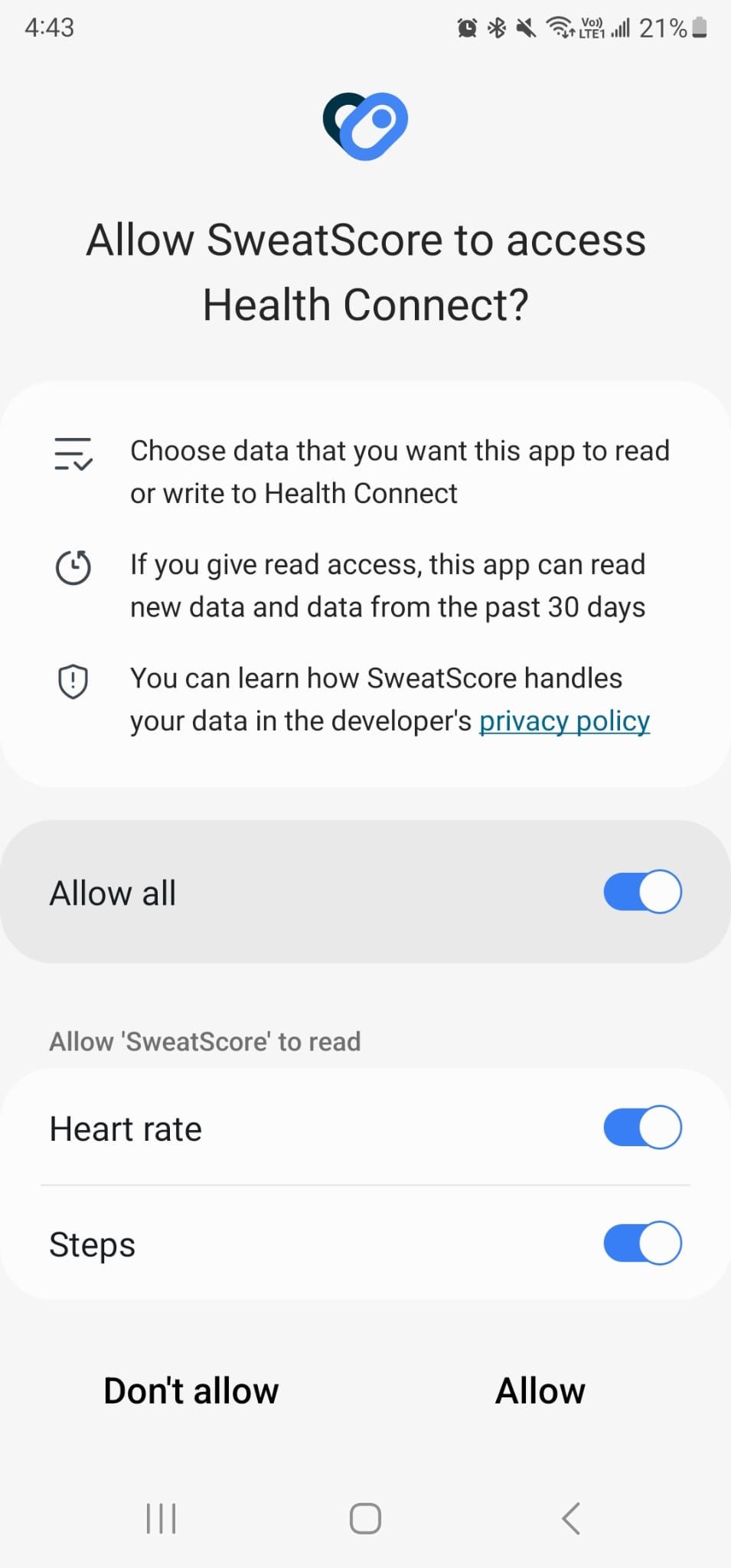
When you grant SweatScore permission, it can read your step and heart rate data from the last 30 days, plus any new data you add moving forward. Your data stays on your device, and you’re always in control of:
Which apps have access
What type of data is shared
Still need help? Ask the team